SWE-bench Evaluation Harness: How to Run It Without the Docker Errors
Fix the common SWE-bench harness Docker failures: the 120 GB disk trap, cache_level tradeoffs, ARM64 builds, mid-run hangs, and manifest-not-found errors.
Table of Contents
When a SWE-bench run dies, the cause is almost always the setup around your model. Most SWE-bench harness failures are Docker setup problems, and this guide walks through the fix for each one.
You run the SWE-bench harness for the first time, point it at a predictions file, and it dies partway through with a Docker error. The model never even gets evaluated. The frustrating part is that almost none of these failures are about your patches or your code.
The SWE-bench evaluation harness builds a tall stack of Docker images and runs each task in its own container. That design is what makes the scores reproducible, and it is also where the setup pain lives. Disk fills up, an image fails to build, a run stalls, or a Mac tries to pull an image that does not exist for its chip.
This guide walks through the five failures almost everyone hits with the SWE-bench harness and the exact fix for each. Every command and flag here is read from the harness source and the official docs, so you can paste it straight into a terminal.
The Direct Answer: Most SWE-bench Failures Are Docker, Not Your Code
The canonical run command is python -m swebench.harness.run_evaluation, and most first-run failures trace to Docker, not your predictions file. Disk space, image builds, and CPU architecture cause the majority of them. Fix the environment and the harness runs clean. Five problems account for nearly all of it.
The harness lives in the SWE-bench/SWE-bench repository, using that capitalized path; the older princeton-nlp/SWE-bench now redirects to it. You hand it a predictions file and a run id, and it scores each prediction inside a fresh container built for that exact task.
A minimal run looks like this:
python -m swebench.harness.run_evaluation \
  --dataset_name SWE-bench/SWE-bench_Lite \
  --predictions_path preds.jsonl \
  --run_id my-first-run
The predictions file is JSONL, one JSON object per line, each naming the instance_id it answers, the model_name_or_path, and the model_patch to apply. The special value --predictions_path gold skips the file entirely and scores the reference patches instead, which is the quickest way to check the setup before you trust a real number.
When that command fails, the traceback usually points at Docker: a full disk, an image that would not build, or a platform mismatch. The sections below cover the disk trap, the image build, the cache setting, Apple Silicon, and mid-run hangs. Each one names the GitHub issue where it was first reported, so you can read the original thread.
The 120 GB Disk Trap
The harness builds a large image stack, so Docker’s virtual disk needs roughly 120 GB of free space, well above the default cap. Raise Docker Desktop’s disk image size and prune stale images. The “no space left on device” failure reported in issue #144 is almost always this.
The official requirements are blunt. The repository README asks for at least 120 GB of free storage, 16 GB of RAM, and 8 CPU cores before you start. The storage figure is the one that catches people, because Docker Desktop ships with a virtual disk far smaller than that, and the harness quietly fills it while building images.
On Docker Desktop, the fix is under Settings, then Resources, then Advanced: raise the disk image size to at least 120 GB and apply. On Linux, make sure the partition holding /var/lib/docker has the headroom. Then clear old layers with docker system prune so a previous half-finished run is not still holding space.
Issue #144 is the report people land on: an evaluation dies with no space left on device while building environment images, even on a machine that looked like it had plenty of room. The disk figures shift with which dataset you run, so treat 120 GB as a minimum and give yourself more for the full test split.
It helps to watch the numbers directly. Run docker system df before and after a build to see how much space is reclaimable, since a failed build often leaves dangling layers behind that keep eating disk until you prune them.
The Three-Layer Image Build (and Why It Is Huge)
SWE-bench builds images in three layers: a base image, then environment images, then per-task instance images. The environment layer alone spans dozens of images, and the full prebuilt set runs into hundreds of gigabytes uncached. Seeing the layering is what makes the cache setting make sense.
The Docker setup docs describe the three layers directly. The base image holds shared system tooling. On top of it sit the environment images, roughly sixty of them, one per Python configuration. On top of each environment image sit the instance images, one per evaluation task, carrying the exact dependencies that single task needs.
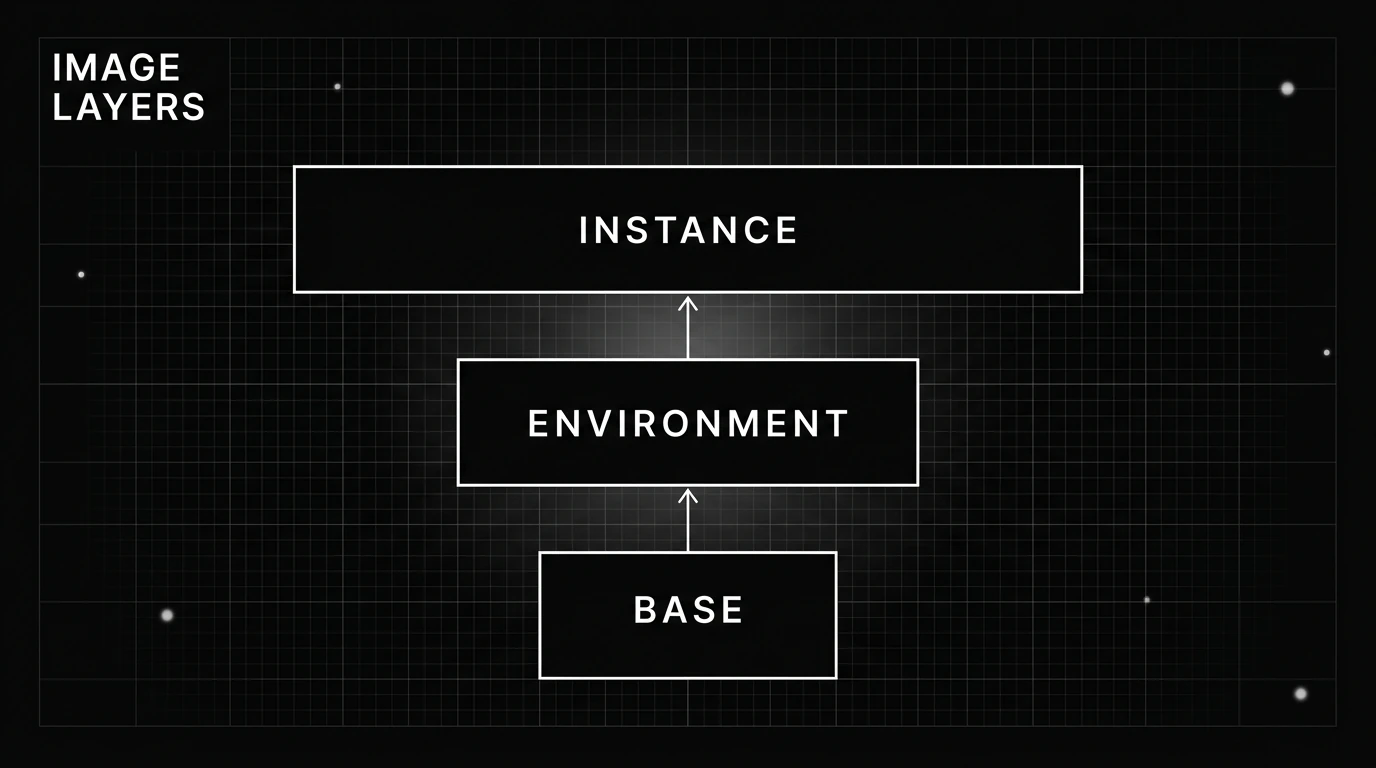
The size comes from the top layer. There is one instance image for every task, and the full test split holds 2,294 of them. Epoch AI, which publishes a prebuilt image set, measured the full unoptimized collection at roughly 684 GiB, with the smaller SWE-bench Verified subset at about 189 GiB. Those figures explain why disk is the first thing to break.
Because the layers stack, you rarely rebuild all of them. A rerun can reuse the base and environment images and only rebuild the instance images that changed, which is exactly the tradeoff the next flag controls.
This is also why scoping a run is cheap. Passing --instance_ids with one or a few task ids builds only those instance images on top of the shared base and environment layers, which is the fast way to reproduce and debug a single failing task without touching the rest.
cache_level: Trading Disk for Speed
The --cache_level flag decides which image layers survive between runs. Its values are none, base, env, and instance, and the default is env. Higher caching keeps more layers for faster reruns and costs disk; lower caching frees disk and rebuilds more each time. Choose by how often you rerun.
In the harness source, --cache_level removes every image above the level you pick once a run finishes. At instance, the per-task images stay on disk, so a rerun is fast but storage stays high. At base, almost everything above the base image is cleared, so you reclaim space at the cost of rebuilding the environment and instance layers next time. The default, env, keeps the base and environment images and drops the instance images.
The evaluation guide gives the practical rule. If you are short on disk, run with --cache_level base to reduce storage. If you rerun the same tasks repeatedly and have room, a higher level saves you the rebuild each time.
The disk cost is concrete. Keeping every instance image is what pushes storage toward the hundreds of gigabytes measured earlier, since there is one such image per task. Dropping to base throws almost all of that away and rebuilds it on the next run, which is the right call when a run is one-off and disk is the scarce resource.
| cache_level | What stays on disk | Best when |
|---|---|---|
instance | Base, environment, and instance images | You rerun the same tasks and disk is ample |
env (default) | Base and environment images | You want a balance of reuse and disk use |
base | Base image only | Disk is tight or the run is one-off |
Running on ARM64 (Apple Silicon)
By default the harness pulls prebuilt x86 images using --namespace swebench. On Apple Silicon those images do not match your chip, so pass --namespace '' to build the images locally instead. Native ARM64 support is still open in issue #520 with pull request #521. Expect longer builds.
The --namespace flag decides where images come from. Its default value, swebench, tells the harness to pull ready-made images from that Docker Hub namespace, and those are built for x86_64. On an Apple Silicon Mac, pulling them leads to platform-mismatch and manifest failures, because no arm64 variant is published for every task.
Setting --namespace '', an empty string, switches the harness to building each image locally, matching your architecture. The tradeoff is time, since local builds are much slower than pulls across dozens of environment images. One catch worth knowing: --force_rebuild and --namespace cannot be combined, and the harness raises an error if you pass both, so clear the namespace first.
Full native ARM64 support is tracked in issue #520 with pull request #521. Both are open and unmerged as of this writing, so the local-build workaround stays the reliable path on Apple Silicon. Check their current status before you assume anything has landed.
Epoch AI publishes best-effort arm64 builds for a large share of the tasks. On Apple Silicon you can try pulling those prebuilt images before committing to a full local build. Coverage is not complete, so some tasks still build locally, but it saves real time on the ones that are available.
Mid-Run Hangs, Manifest Errors, and Worker Tuning
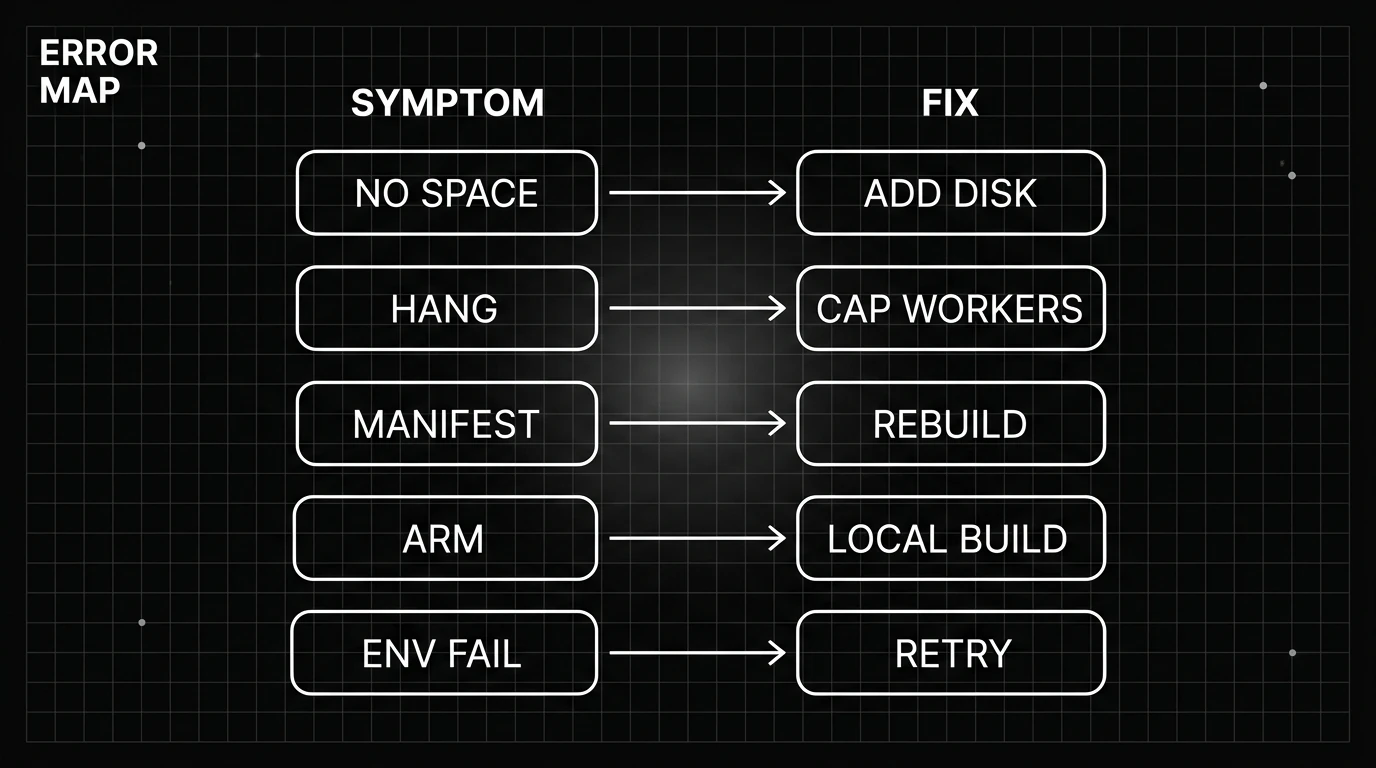
A run that stalls is usually too many parallel workers, reported in issues #157 and #158. Cap them with --max_workers. A “manifest not found” error (#327) means a missing image: rebuild it or use Epoch AI’s prebuilt set. When the environment is sorted, validate the harness itself with --predictions_path gold.
Parallel workers are the usual reason a run freezes. Issues #157 and #158 describe evaluations that get stuck in the middle, with one pinpointing a deadlock inside a future.result() call that will not even respond to Ctrl-C. The harness defaults to four workers, and the README recommends staying under min(0.75 * os.cpu_count(), 24). Set --max_workers to a value in that range so build and evaluation containers are not all fighting for the machine at once.
Before assuming a deadlock, rule out a slow build. Each task carries a time budget set by --timeout, which defaults to 1800 seconds, so an image that takes several minutes to compile is expected behavior. A true hang looks different: it stops making progress and stops printing new logs, which is the signature of the worker deadlock in those issues.
A “manifest not found” error is the second common stall. Issue #327 shows the exact message, a manifest unknown for one instance image, which means the image the harness expected is missing or mis-tagged. Rebuilding that image fixes it, or you can skip local builds entirely by pulling Epoch AI’s prebuilt images, which cover almost every task in the test set and the whole Verified subset, so a SWE-bench Verified harness run needs no local building at all.
A third failure shows up during environment builds. Issue #293 is an environment image that failed to build, with a pip read-timeout and a dependency that would not resolve buried in its log. A retry often clears the transient timeout, and pointing pip at a faster mirror helps when the fetch keeps stalling.
| Symptom | Likely cause | Fix |
|---|---|---|
no space left on device (#144) | Docker disk under about 120 GB | Raise disk image size, prune old images |
| Run hangs mid-evaluation (#157, #158) | Too many parallel workers | Set --max_workers to min(0.75 * cpu, 24) |
manifest not found (#327) | Missing or mis-tagged image | Rebuild it, or pull Epoch AI images |
| ARM64 build fails (#520) | Pulling x86-only images | Pass --namespace '' to build locally |
| Env image build fails (#293) | pip read-timeout or dependency clash | Retry, or use a package mirror |
Before trusting a real score, confirm the harness works. Run it with --predictions_path gold, which scores the correct patches that ship with the dataset. Gold patches should come back close to fully resolved, and if they do not, the problem is your setup. That single check is the fastest way to tell a Docker problem apart from a real change in the score. It is also where SWE-bench fits into the wider work of agent harness evaluation.
A finished run writes its results to a JSON report keyed under the --run_id you passed, summarizing which instances resolved and which did not. Reading that file is how a completed run becomes an actual score. Keep a distinct run id for each attempt, since reusing one lets a fresh run overwrite the report you meant to keep, so a clear, dated naming scheme is worth the small effort.
Keep a short checklist for every fresh run: 120 GB of Docker disk free, --max_workers capped, the right namespace for your architecture, and a gold run that passes. Clear those four and the harness stops throwing Docker errors and goes back to its actual job, measuring whether your patches resolve real GitHub issues.
Frequently Asked Questions
Why does SWE-bench fail with no space left on device?
How much disk space does SWE-bench need?
How do I run SWE-bench on Apple Silicon (ARM64)?
What does cache_level do?
Why does my SWE-bench run hang?
How do I verify the harness works?
Evaluating an agent means scoring trajectories, tool calls, and environment outcomes. How an agent eval harness works, and the benchmarks that power it.

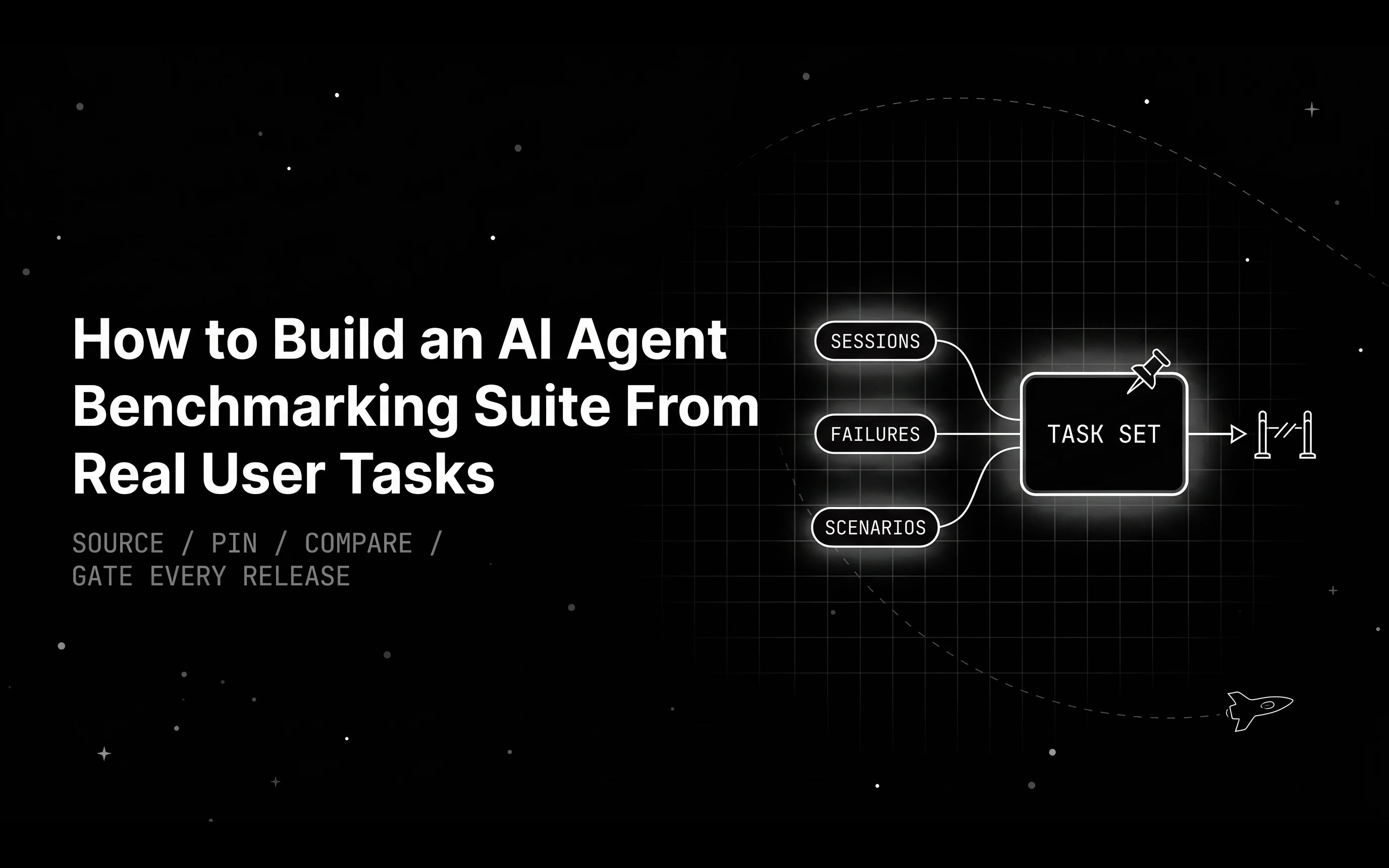
AI agent benchmarking that predicts production: source tasks from real sessions, pin the task set, compare runs with intervals, and gate every release on it.

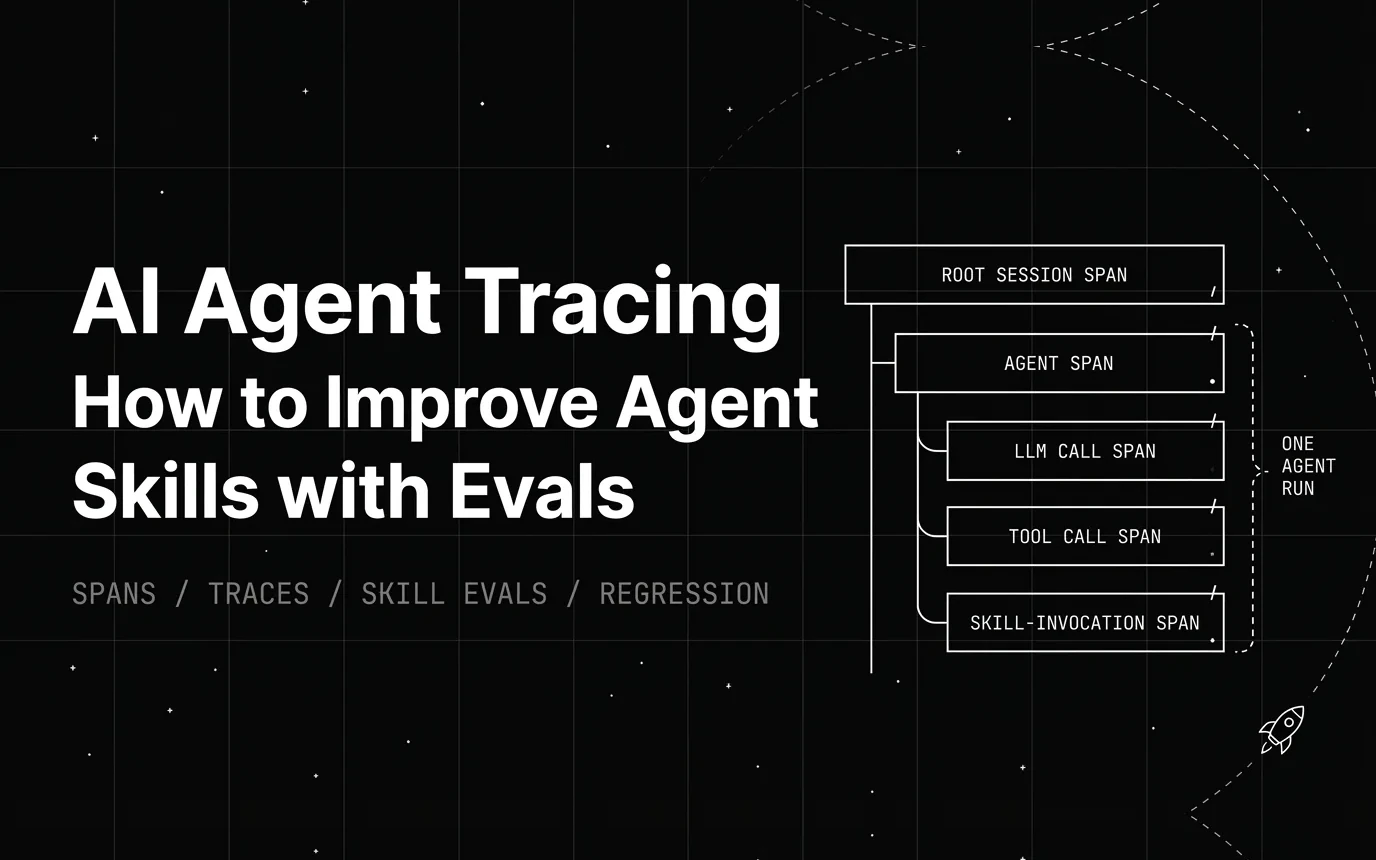
Run a skill-on/skill-off agent skill evaluation: capture span-level traces of both runs, score them with paired evals, and prove a skill edit is safe.